How to Pair a Key Fob with an Autowatch Ghost Immobiliser
Nationwide on-site installation
Thatcham Approved Installers
0% Interest Finance Available
Leading Customer Care
How to Pair a Key Fob with an Autowatch Ghost Immobiliser
If you’ve purchased a replacement key fob or need to reconnect an existing one, this guide explains how to pair a key fob with your Autowatch Ghost Immobiliser. The process varies slightly depending on whether you have a Ghost-II, Ghost Pro or Ghost-III, so simply follow the instructions for your model below. If pairing is unsuccessful, we’ve also included troubleshooting advice to help you get back up and running.
Preparing the Key Fob for Pairing Mode
Complete the following steps once your Ghost Immobiliser has already been placed into fob pairing mode. Instructions for entering fob pairing mode can be found in the relevant sections below for your Ghost model.
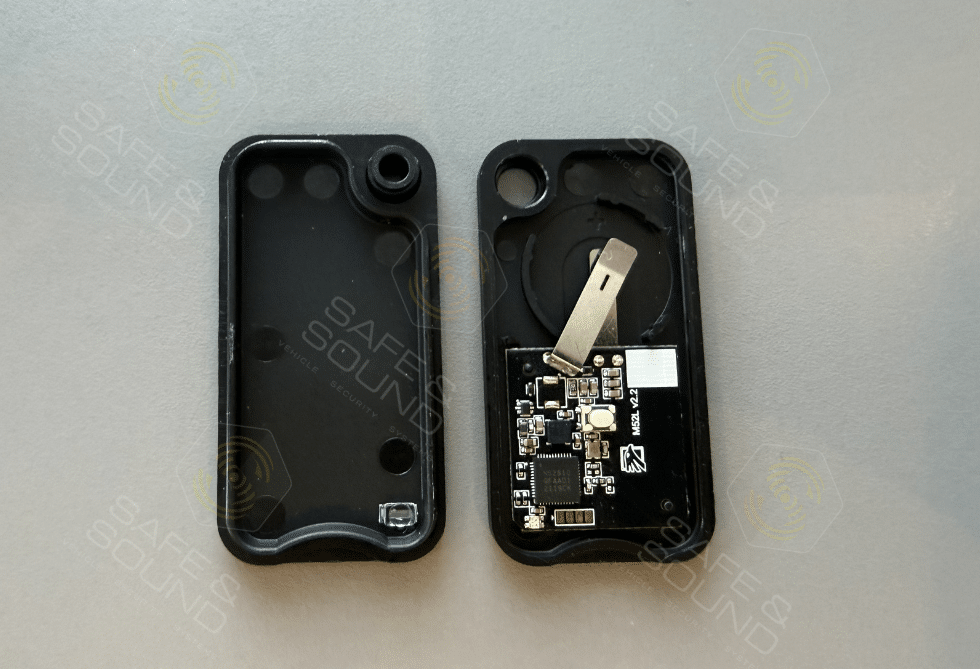
These instructions are for the Bluetooth Fob pictured, earlier versions of the tag are no longer supported.
Open the key fob and remove the battery.
Press and hold the button on the fob while reinserting the battery.
Continue holding the button until the LED begins flashing once every second (the LED colour may be red or green depending on the fob version).
If the Ghost Immobiliser is already in pairing mode, the pairing process will begin automatically. Once successfully paired, the LED will produce a long flash in the opposite colour (red or green, depending on the version).
Pairing a Key Fob to a Ghost-II or Ghost Pro
Switch the vehicle ignition on, but do not start the engine.
Enter your normal disarm code.
Press and hold the accelerator pedal fully to the floor.
Enter your disarm code again. The Ghost will enter Learn Mode, indicated by a flash every three seconds.
Release the accelerator pedal.
Press the service button twice.
Place the key fob into pairing mode and wait for the Ghost to confirm successful pairing with a double flash.
Important:
On certain vehicle models, the accelerator pedal cannot be used to enter Learn Mode. In these cases, pull and hold the high-beam stalk towards you instead. If you are unable to enter Learn Mode, please contact us and we’ll be happy to help.
Pairing a Key Fob to a Ghost-III
Switch the ignition on, but do not start the engine.
Enter your normal disarm code.
Press and hold the accelerator pedal fully to the floor.
Enter your disarm code again. The Ghost will enter Learn Mode, confirmed by a flash every three seconds.
Release the accelerator pedal and wait for several confirmation flashes.
Press the accelerator fully to the floor and release it three times, then wait for the three-flash confirmation.
Press the accelerator fully to the floor and release it twice, then wait for the two-flash confirmation.
Press the accelerator fully to the floor and release it once, then wait for the single-flash confirmation.
Place the key fob into pairing mode and wait for the Ghost to confirm successful pairing with a double flash.
Troubleshooting
Bluetooth pairing can occasionally fail for a number of reasons. This is often due to differences in the way individual smartphone manufacturers implement Bluetooth Low Energy (BLE), or because previous pairing information is still stored within the Ghost Immobiliser’s memory.
If you have been unable to pair either your phone or key fob after following the instructions above, we recommend performing a complete reset of both the Bluetooth phone memory and the key fob pairing memory before trying again. The exact reset procedure varies depending on which Ghost model you have.
Top Rated Service
We work hard to be 5 star rated by our happy customers.
             Posted on Google        charles bristow     Trustindex verifies that the original source of the review is Google. A great and efficient service, would highly recommend.         Posted on Google        Darrel Horsley     Trustindex verifies that the original source of the review is Google. Perfect thanks.
Scott in the office and Rob who came to install the tracker were both really helpful.         Posted on Google        Rhino     Trustindex verifies that the original source of the review is Google. The whole process from the first enquiry to Rob to the installation by Rob was excellent!         Posted on Google        Jacek Kucewicz     Trustindex verifies that the original source of the review is Google. Professionalism and very friendly service.         Posted on Google        AD Glover     Trustindex verifies that the original source of the review is Google. Great customer service
Friendly and knowledgeable engineer.
Fast efficient and professional.         Posted on Google        Dillon P     Trustindex verifies that the original source of the review is Google. Very happy with the level of service received and the quality of install of my car security system. Highly recommended.         Posted on Google        Mark Howitt     Trustindex verifies that the original source of the review is Google. What a bunch of absolute stars, go above and beyond to help, very professional and excellent service. Don't screw about, just book your immobiliser service through these boys I doubt you would be disappointed!               Verified by Trustindex  Trustindex verified badge is the Universal Symbol of Trust. Only the greatest companies can get the verified badge who has a review score above 4.5, based on customer reviews over the past 12 months. Read more
Take Our Tracker Quiz To Find Your Perfect Product
We are a family-run vehicle security company that cares. We aim to be priced competitively, providing a quality job with outstanding aftercare at a great price.
To provide the best experiences, we use technologies like cookies to store and/or access device information. Consenting to these technologies will allow us to process data such as browsing behaviour or unique IDs on this site. Not consenting or withdrawing consent, may adversely affect certain features and functions.
Functional
Always active
The technical storage or access is strictly necessary for the legitimate purpose of enabling the use of a specific service explicitly requested by the subscriber or user, or for the sole purpose of carrying out the transmission of a communication over an electronic communications network.
Preferences
The technical storage or access is necessary for the legitimate purpose of storing preferences that are not requested by the subscriber or user.
Statistics
The technical storage or access that is used exclusively for statistical purposes.The technical storage or access that is used exclusively for anonymous statistical purposes. Without a subpoena, voluntary compliance on the part of your Internet Service Provider, or additional records from a third party, information stored or retrieved for this purpose alone cannot usually be used to identify you.
Marketing
The technical storage or access is required to create user profiles to send advertising, or to track the user on a website or across several websites for similar marketing purposes.